SMS Opt-In Documentation
How Safeguard Signal obtains consent before sending SMS messages
This page documents Safeguard Signal's SMS opt-in process for regulatory and carrier compliance. Safeguard Signal is a B2B emergency alert platform. SMS messages are sent on behalf of employers to employees who have explicitly opted in. No SMS messages are ever sent without affirmative consent.
Step 1: Employee receives an invitation from their employer
Employees do not self-register on Safeguard Signal. Each employee receives a personalized invitation email from their employer's workspace administrator. The invitation contains a unique link to create their account.
How employees receive their invitation:
- Workspace administrator sends an invitation from the Safeguard Signal Users page
- Employee receives a personalized email with a unique secure link
- Link expires after 7 days for security
- Employee clicks the link and creates their account with name, email, and password
- Employee is automatically added to the correct workspace with the role assigned by their administrator
Step 2: Employee navigates to their Profile page and enters their phone number
After creating their account, the employee navigates to their Profile page. The SMS toggle is OFF by default. The employee enters their mobile phone number in the Phone Number field.
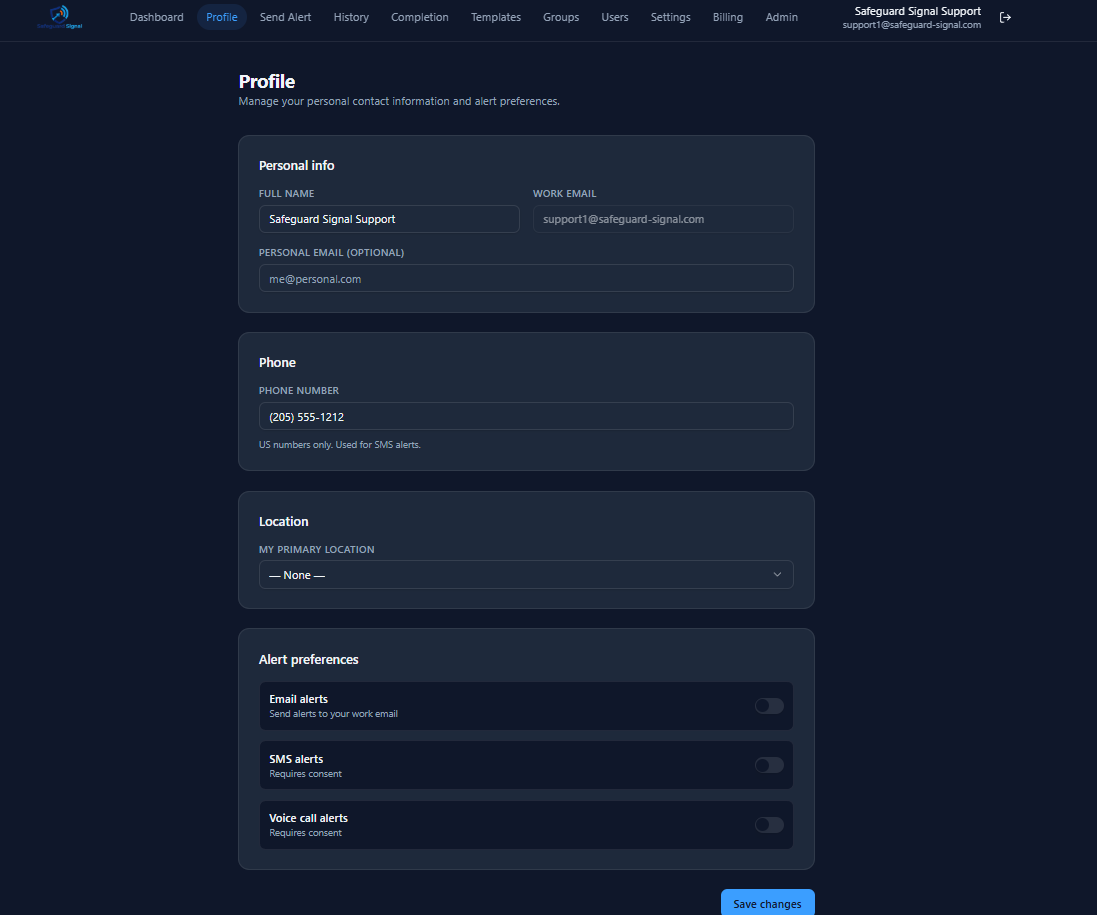
Step 3: Consent modal appears automatically when a valid phone number is entered
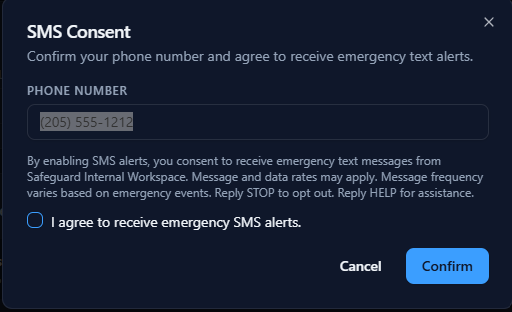
As soon as the employee enters a valid 10-digit US phone number, an SMS Consent modal appears automatically. The employee must:
- Read the full consent disclosure
- Affirmatively check an unchecked checkbox stating "I agree to receive emergency SMS alerts"
- Click Confirm
SMS is never enabled by default. The checkbox is unchecked and the Confirm button is disabled until the employee actively checks the box. Clicking Cancel clears the phone number and no SMS messages are sent.
Step 4: Opt-in confirmed
After confirming consent, the employee's phone number is saved, their SMS opt-in status is set to active, and the consent timestamp is recorded in our database. The employee receives a one-time confirmation SMS:
[Company Name] Emergency Alerts: You are now subscribed to receive emergency SMS notifications. Msg freq varies. Msg & data rates may apply. Reply STOP to unsubscribe, HELP for help.
Opting Out
Employees may opt out at any time by:
- Replying STOP to any SMS message - processed immediately
- Toggling SMS alerts OFF in their Profile settings
After opting out the employee receives one final confirmation: "You have been unsubscribed from Safeguard Signal emergency alerts. No further messages will be sent. Reply START to resubscribe."
Compliance Information
| Opt-in method | Explicit in-app consent - affirmative checkbox |
|---|---|
| Opt-in trigger | Automatic on valid phone number entry |
| Checkbox default | Unchecked |
| Consent timestamp | Recorded in database at time of opt-in |
| Message types | Emergency alerts, safety notifications, operational urgent communications |
| Message frequency | Varies - emergency events only, not routine communications |
| Opt-out keywords | STOP, STOPALL, UNSUBSCRIBE, CANCEL, END, QUIT |
| Opt-in keywords | START |
| Help keywords | HELP, INFO |
For additional information
- Privacy Policy: safeguard-signal.com/privacy
- SMS Terms: safeguard-signal.com/sms-terms
- Terms of Service: safeguard-signal.com/terms
- Contact: support@safeguard-signal.com